Guide
How to get samples onto an Akai S1000 from a modern Mac (2026)
Updated 2026-08-20
The problem
The Akai S1000 reads 800 KB/1.6 MB floppies and SCSI drives — two things no modern Mac has. The good news: the retro-computing world solved both, and in 2026 you can go from a folder of WAVs to a bank loading on the S1000 in minutes.
You need two things: hardware that emulates the S1000's storage, and software that writes samples in the S1000's native format — its .s files, programs and disk structure, which no DAW exports.
Route 1: Gotek floppy emulator
A Gotek drive (flashed with FlashFloppy firmware) replaces the S1000's floppy drive and reads disk images from a USB stick. Each image is one Akai floppy: about 1.6 MB of samples.
S-Convert writes these .img files directly: drop samples in, build a program, choose the S1000 target with Gotek media, and copy the resulting images to your USB stick. The S1000 sees real Akai floppies. If your Gotek runs the older HxC firmware, S-Convert can emit HFE images instead.
Floppies are simple but small — fine for drum kits and single instruments, slow for large multisamples. If your S1000 has its SCSI port free, Route 2 is faster in every way and the direction we'd steer you.
Route 2: SCSI emulator (ZuluSCSI / BlueSCSI)
The S1000 has a SCSI port, and a ZuluSCSI or BlueSCSI board emulates a SCSI hard drive from an SD card. This is the serious route: hundreds of megabytes, whole libraries, fast loads.
S-Convert builds .hda drive images — including multi-partition, multi-volume layouts, packed automatically against real Akai capacity limits — that you copy onto the SD card. Name it for the SCSI ID you use (S-Convert defaults to HD5.hda for SCSI ID 5), set the same ID on the sampler, and the S1000 boots with your whole library attached.
If you run a PiSCSI/RaSCSI instead, just move the .hda images onto it the way you normally load images — the sampler can't tell the difference. (A direct network push from S-Convert is built in and being fine-tuned in beta.)
The part people underestimate: building the programs
Getting bytes to the sampler is half the job. The S1000 organizes sound as Volumes containing Programs containing Keygroups — and a converter that just dumps WAVs onto a disk gives you a pile of raw samples with no playable structure.
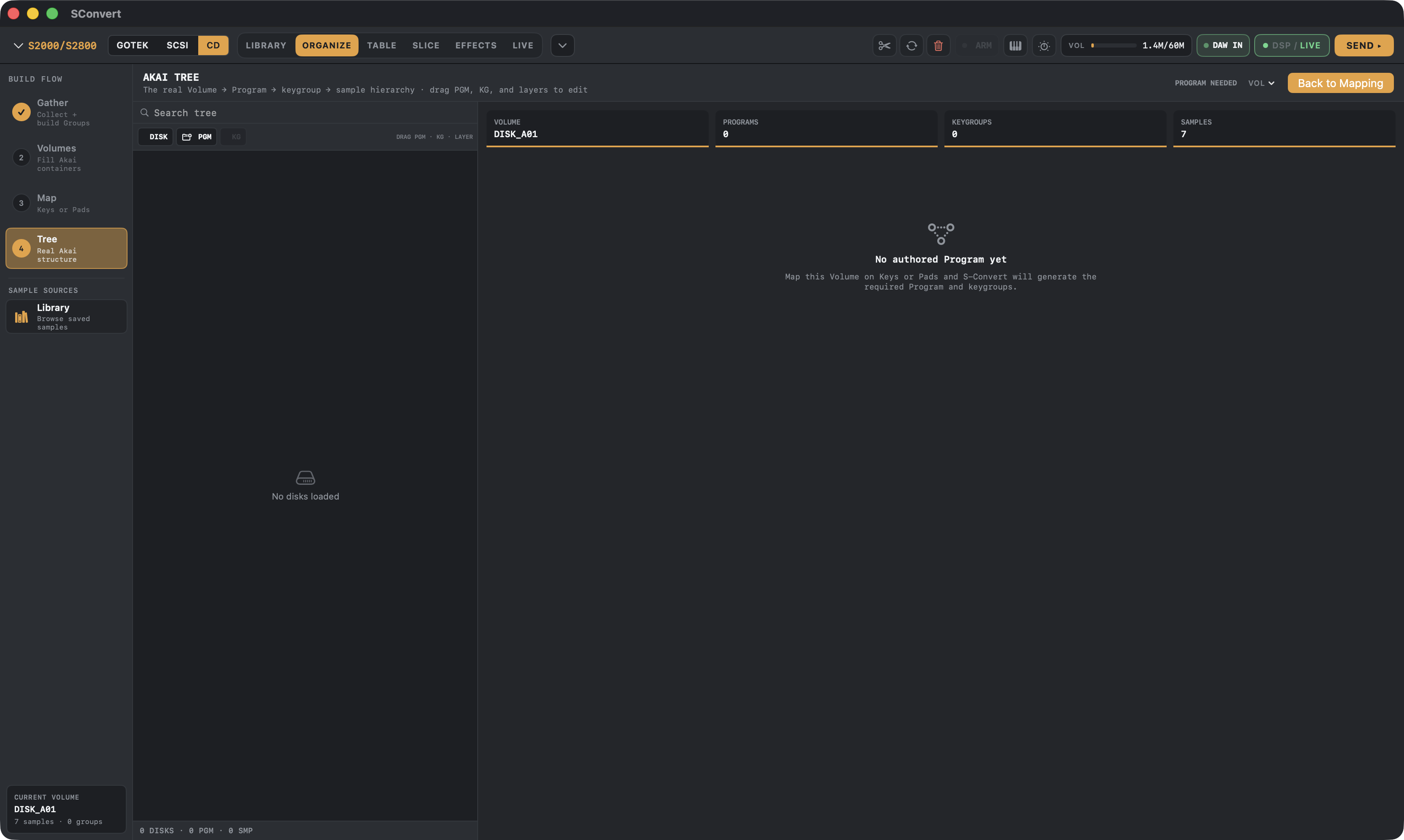
S-Convert's four-phase workflow (Gather → Volumes → Map → Tree) builds that structure on the Mac: group your samples, pack them into volumes that respect the S1000's limits, map them across keys with velocity layers, then fine-tune the actual Volume → Program → Keygroup tree before writing.
Sample rate and bit depth are handled per-model: the S1000 caps at 44.1 kHz/16-bit, and S-Convert keeps your source rate when it fits rather than blindly resampling.
Shopping list
Hardware: a Gotek with FlashFloppy or a ZuluSCSI/BlueSCSI plus an SD card. Cables: standard floppy ribbon or SCSI (check your S1000's connector — DB25 or Centronics 50).
Software: S-Convert on any Apple Silicon Mac running macOS 14+. Import WAV, AIFF, or even whole SoundFonts and EXS instruments, and write native S1000 media.
S-CONVERT
S-Convert does everything in this guide from one app — import, build, map, and write sampler-ready media.